Email attachments are an important part of modern communication. Businesses and individuals often use Outlook to exchange documents, invoices, images, reports, presentations, and other valuable files. These attachments may contain critical information that users need for daily operations or future reference.
However, situations like accidental email deletion, PST file corruption, Outlook crashes, or system failures can make important attachments unavailable. Losing access to attached files can create unnecessary problems, especially when those files are related to business projects, financial records, or personal documents.
Fortunately, Outlook attachments stored within PST files may still be recoverable using the right recovery methods. Understanding how Outlook stores attachments and how recovery works can help users restore missing files effectively.
Why Outlook Email Attachments Become Missing
Microsoft Outlook stores mailbox information inside PST (Personal Storage Table) files. These files contain emails, attachments, contacts, calendars, tasks, notes, and folder structures.
Attachments can become unavailable due to several reasons, including:
- Accidental deletion of emails
- Emptying the Deleted Items folder
- PST file corruption
- Outlook application crashes
- Hard drive problems
- System formatting
- Malware attacks
- Damaged Outlook profiles
- Improper PST file transfer
In many cases, users assume that deleted attachments are permanently lost. However, if the data has not been overwritten, recovery may still be possible.
Understanding How Outlook Stores Attachments
When a user receives an email with an attachment, Outlook stores the message and attached file information inside the PST database. The attachment remains connected to the original email message.
If the PST file becomes damaged or inaccessible, Outlook may fail to display the email or attachment correctly.
Common attachment types stored in Outlook include:
- PDF documents
- Word files
- Excel spreadsheets
- Images
- Presentations
- Text files
- Business documents
Recovering these files requires analyzing the PST structure and identifying available mailbox data.
Common Situations Where Attachment Recovery Is Required
There are several scenarios where users may need to restore Outlook attachments.
Deleted Emails With Attachments
Users may accidentally delete emails containing important files. If the email is removed from Outlook folders, the attached documents may also become unavailable.
Corrupted PST Files
A damaged PST file can affect access to emails and attachments. Outlook may show errors or fail to open the mailbox completely.
Outlook Crash or System Failure
Unexpected shutdowns or application crashes can interrupt Outlook operations and cause mailbox data accessibility issues.
Lost PST Files
If a PST file is deleted, moved, or lost after formatting a drive, all stored emails and attachments may become inaccessible.
How PST Recovery Helps Restore Attachments
When normal Outlook options cannot restore missing files, specialized recovery solutions can help analyze the PST file and locate recoverable data.
Users looking for how to recover Outlook email attachments from PST can follow a structured recovery process.
The general recovery process includes:
Step 1: Select the Outlook PST File
The first step is selecting the PST file that contains the missing email attachments. The file may be located on the local computer or backup storage.
Step 2: Scan the PST File
Recovery software analyzes the PST structure and searches for available emails, folders, and attachments.
The scanning process identifies mailbox items that may no longer be accessible through Outlook.
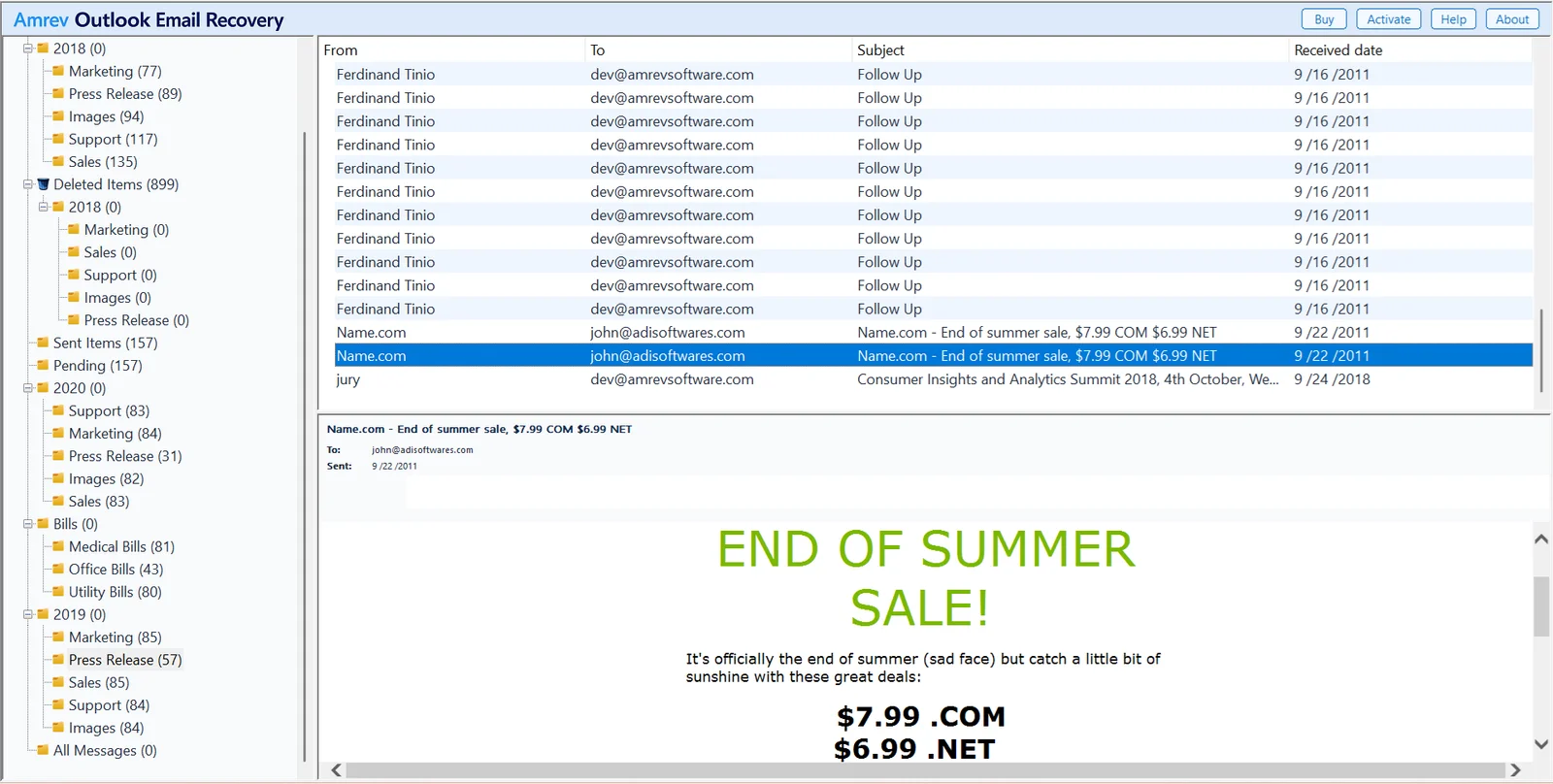
Step 3: Preview Available Attachments
Before recovery, users can preview available emails and attached files. This helps confirm whether the required documents are recoverable.
Step 4: Save Recovered Attachments
After selecting the required files, users can save recovered attachments and restore access to important documents.
Benefits of Using Professional Outlook Recovery Software
Manual recovery methods may not always work, especially when the PST file is damaged or inaccessible. Professional recovery solutions provide deeper analysis and better chances of retrieving mailbox data.
Amrev Outlook Email Recovery helps users recover Outlook mailbox information from problematic PST files.
A reliable recovery solution can help restore:
- Emails
- Email attachments
- Contacts
- Calendar information
- Tasks
- Notes
- Folder structures
These tools are designed to analyze PST files without modifying the original data, helping users maintain mailbox integrity during recovery.
How to Prevent Future Attachment Loss
Taking preventive measures can reduce the risk of losing important Outlook attachments.
Create Regular PST Backups
Regular backups provide an additional recovery option when mailbox data becomes unavailable.
Store Important Files Separately
Saving important attachments outside Outlook provides extra protection.
Maintain PST File Health
Monitoring PST size and avoiding corruption risks can improve Outlook performance.
Avoid Improper Outlook Shutdowns
Closing Outlook correctly helps prevent PST file damage.
Choosing the Right Recovery Approach
The success of attachment recovery depends on several factors:
- Condition of the PST file
- Time since deletion
- Amount of new data written
- Storage device condition
- Recovery method used
Acting quickly improves the possibility of restoring important attachments successfully.
Conclusion
Losing Outlook email attachments can create significant challenges, especially when important documents and files are involved. Whether attachments become unavailable due to accidental deletion, PST corruption, or Outlook issues, recovery options are available.
By understanding how to recover Outlook email attachments from PST, users can take the correct steps to restore valuable files and mailbox information. With reliable recovery solutions and proper backup practices, Outlook users can protect important attachments and reduce the risk of permanent data loss.
Congrats! You’ve Finished This Blog.